Next Steps Flow Content Type
The Next Steps Flow content type is where ILAO staff can create a specific flow for a specific Legal How-to. This can then be used to send scheduled follow-up messages.
A Next Steps Flow must be attached to a single Legal How-to. Once the Legal How-to is selected, a staff member can create messages attached to 1 or more steps associated with that Legal How-to.
Note
Legacy “How-to” content can not be used for this. Only COPE-based Legal How-to’s can be used.
Creating a Next Steps Flow
For each next step flow, you must:
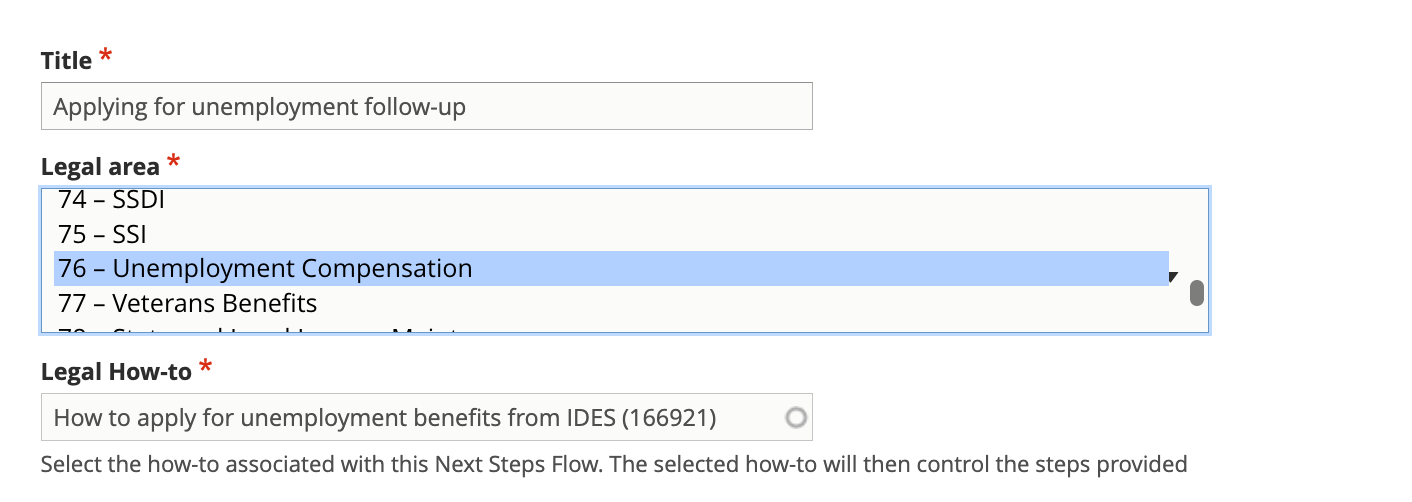
Give the flow a title. This title should reflect the how-to; it will be displayed in widgets partners use to subscribe people to NextSteps.
Tie the flow to an LSC problem code. This is required to align with OTIS partners’ systems
Attach the appropriate Legal How-to
Create the first message
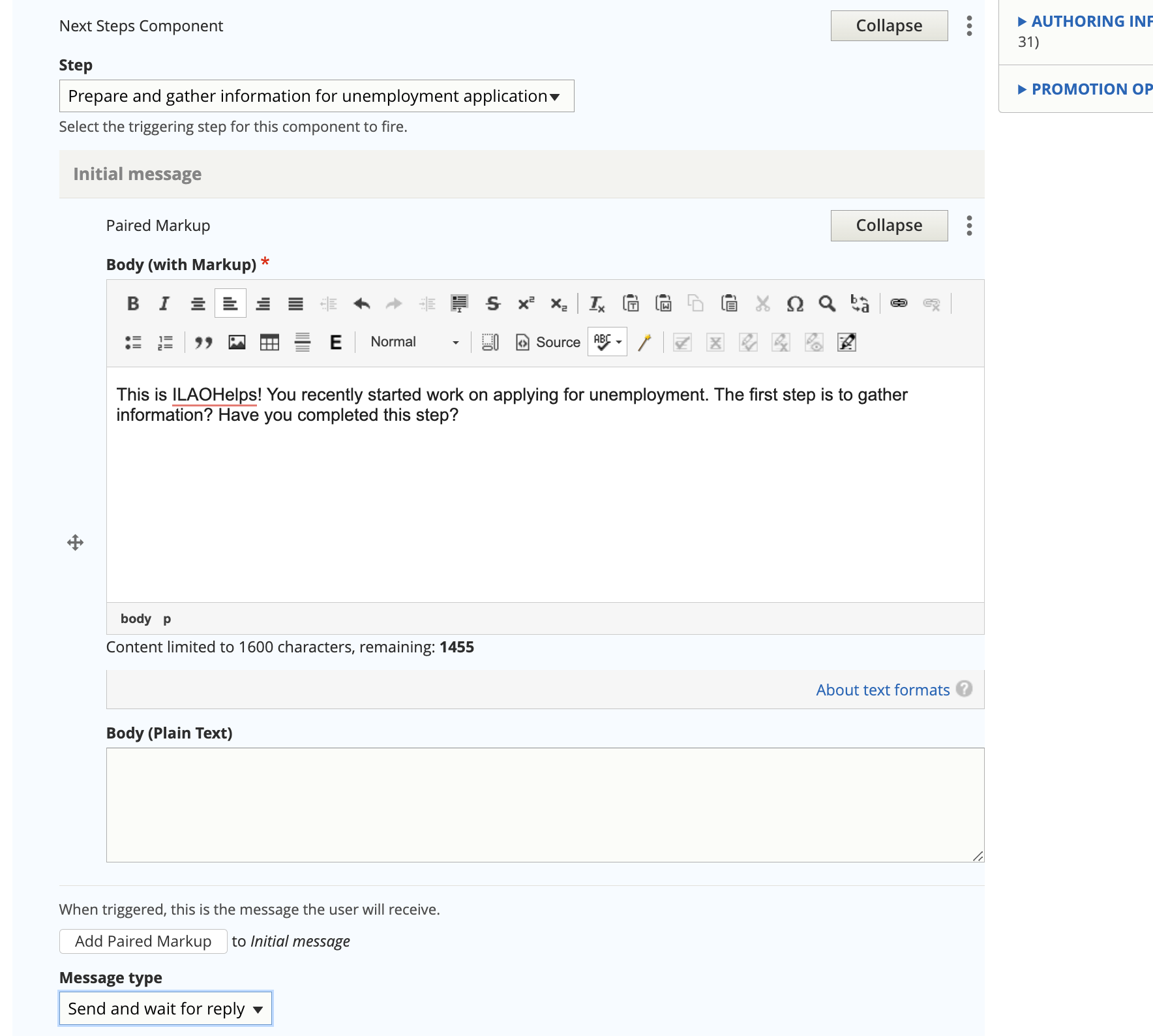
Once the Legal How-to is attached, the Step dropdown will populate with the list of steps. Always start the flow with the first step.
Warning
The component is triggered when the system is told the user has BEEN ADIVISED TO COMPLETE the step.
To create the message:
Pick the step
Create a short message. Ideally, messages should be less than 160 characters but can not be more than 1600.
Select the message type:
Send and wait for reply - this tells the system to expect a reply from the individual. You’ll need to then add replies.
Send, no reply - this tells the system to ignore any replies as we don’t expect them. This is typically used only on the last step.
Add replies
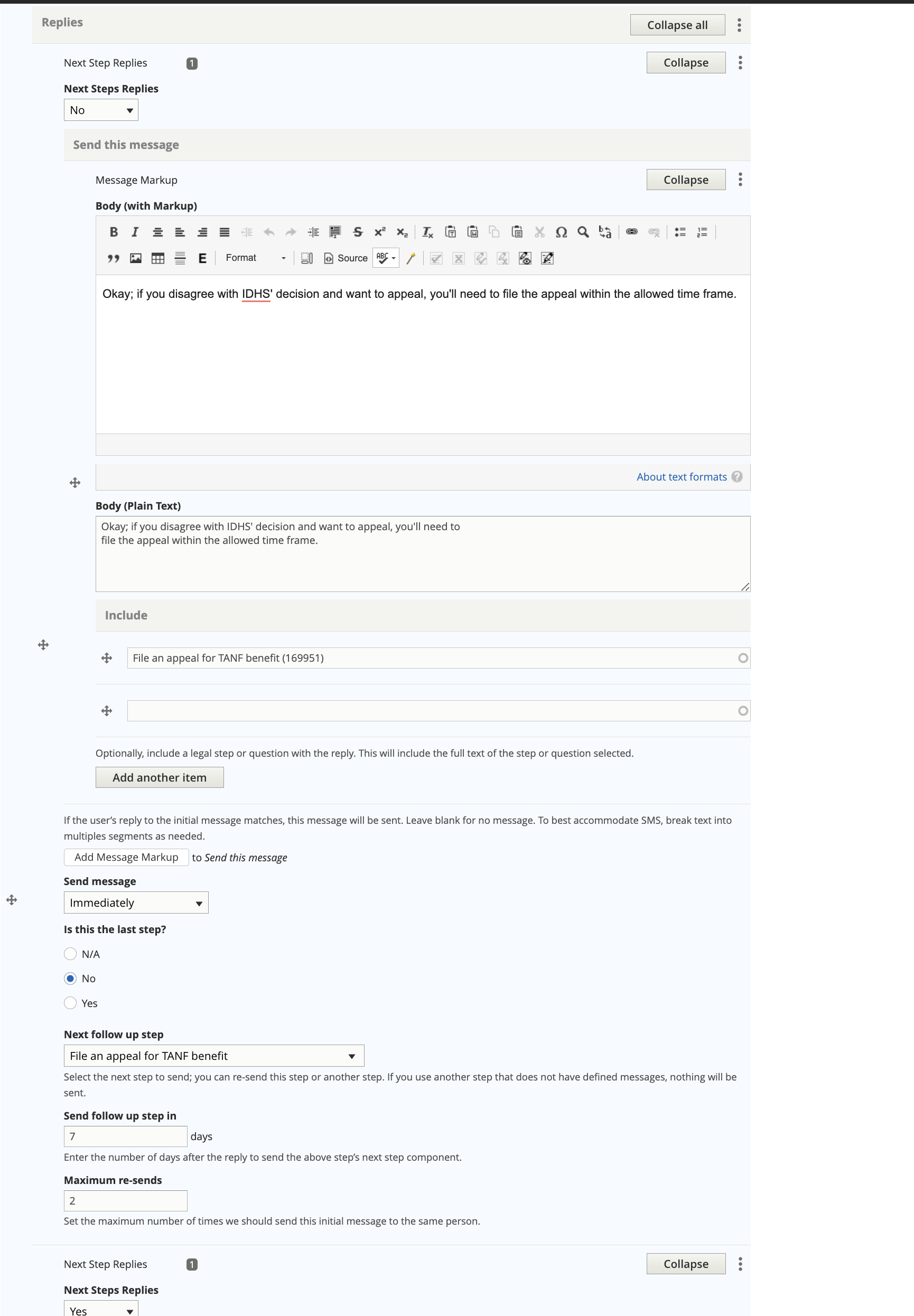
If your message has a message type of “Send and wait for reply,” you must add reply handlers. Reply handlers are limited to processing replies of:
Yes (will also handle various ways someone may reply Yes, such as Y, Yep, yeah)
No (will also handle various ways someone may reply No, such as N, nope, not)
No match, for cases where someone replies with something the system can’t handle
No reply, for cases where someone was sent a message but does not reply within Twilio’s time out.
For each reply:
Creata a follow-up message. For example, if a user replies No, you might want to reassure them, remind them of the next step, and schedule another reminder.
Do not use the include field.
Schedule when to send the message; 99% of the time, this should be set to immediately.
Indicate if this is the last step in the flow.
Schedule a next step follow up:
Pick the step to follow up with next (this can be the current step or a future step)
Schedule when to send the follow up message, in days.
Set a maximum number of times to resend the reply follow up.
Repeat for each type of reply the system needs to handle.
Warning
Do not attach the text of a legal step or legal question(s) using the Include field since those are not currently being used. If you need to include specific legal information, it must go in the message.
Additional Steps
Repeat the “Create the first message” and “Add Replies” for each step in the flow. When you add the last step, set the Is last step to Yes.
Example Flow

For example, in the above example, the step “Pre-appeal conference for TANF appeal” will be triggered:
immediately, if a caseworker selects Pre-appeal conference for TANF appeal in LegalServer
7 days after an individual receives the File an appeal for TANF benefits and replies Yes
7 days after an individual recieves the Pre-appeal conference for TANF appeal and replies No, up to two times
Maximum retries
Each step with a send with reply option must have a maximum number of times to retry so we are not continually leaving flows open and sending messages to individuals.
In the Example case:
If a user replies No to Pre-appeal conference message, the question will resend in 7 days. If the user replies No again, it will send one more time in 7 days. If the user still replies No, it will stop sending further messages.
Note
If someone replies “Stop” to a text message, they will be unsubscribed and will not receive additional messagss.
Technical Specifications
Next Flow Content Type
Field |
Description |
Type |
|---|---|---|
Title |
Title for the flow |
Title |
Legal How-to |
Single select for the associated legal how-to content type |
Entity reference |
Next Step Component |
Container for a specific next step |
Paragraphs; unlimited |
Next Step Component
The next step component contains the triggering step, initial message and handling for replies.
Field |
Description |
Type |
|---|---|---|
Step |
Single select for the associated steps in the how-to |
Entity reference |
Initial message |
Message to send when triggered |
Paired Markup unlimited |
Message type |
Single select - Message and wait for reply OR message |
Select |
Replies |
Container for processing replies |
Paragraphs; unlimited |
Replies
Replies live within the Next Step Component and are designed to store information for processing a reply and determining next steps.
Field |
Description |
Type |
|---|---|---|
When the user replies |
Single select |
Term reference |
Send this message |
Text of follow up |
Paired markup |
Send message |
Single select (immediately or time from trigger or no reply) |
List |
Time from reply |
Number of days to send when Send message is set time |
Number |
Last step |
Indicate if this is the last or not |
Boolean |
Next follow up step |
Single select of availalbe steps |
Entity reference |
Send follow-up step in |
Number of days to send follow up step |
Number |
Maximum re-sends |
Maximum times we should send a specific initial message |
Number |