Live Chat
Our live chat system is powered by Comm100.
Overview
Our Live chat solution includes:
a static chat button. This button is managed entirely through Comm100.
an invitation to chat
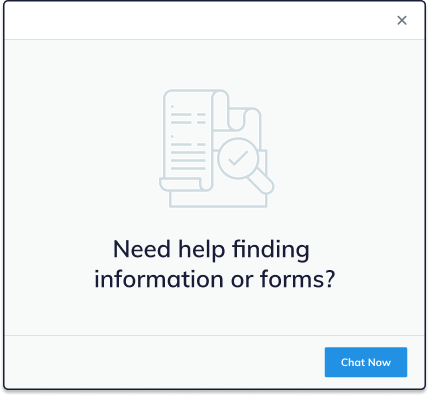
The image is editable through our designers’ Figma files. See Gwen if you need a revision. The close region is set in Comm100.
On our website
Comm100 is configured on our website using a block in the footer region.
Configure the block (choose where it shows up)
Edit the block (update the JavaScript to include). The Javascript is only visible if you click on Source in the WYSIWYG window.
The block is configured to:
Show on English pages only
Show for all authenticated and anonymous users
Only in our main theme (which prevents it from showing on admin pages like the CMS)
Note
The previous chat system allowed us to exclude users by role from seeing the Live chat icon and pop up (specifically staff and legal aid members). The new system only allows us to include users by role. Because all logged in users have the authenticated role and community members ONLY have the authenticated role, we can not disable that role. This then results in the chat buttons appearing for all logged in users.
On Comm100
Comm100 controls:
Whether the chat icon appears on our website. The icon disappears if no agent is logged into the Comm100 console.
When the pop up appears (currently set after the user has been on the site for 30 seconds)
What the chat button, pop up image, and chat box looks like and where it is placed on the site.
Comm100 also provides the JavaScript we include in our Drupal block to control Comm100.